
Rugby Subs Fees Tracker Excel – Free Template (2026)
Accounting & GST
GST Return Excel - Free Template
Track GST transactions and total your return in one NZ spreadsheet with transactions, summary and instructions.
2026-06-20
205 downloads
4.8/5 average rating
Download template
This GST return Excel template helps you track taxable sales and purchases at the GST 15% rate and build a clean return summary in one workbook. It includes three sheets: GST Transactions, GST Return Summary, and Instructions.
You can use it to record the GST amount, gross value, classification and return period for each line. It is set up for New Zealand businesses that want a simple workbook for the numbers before they file with Inland Revenue.
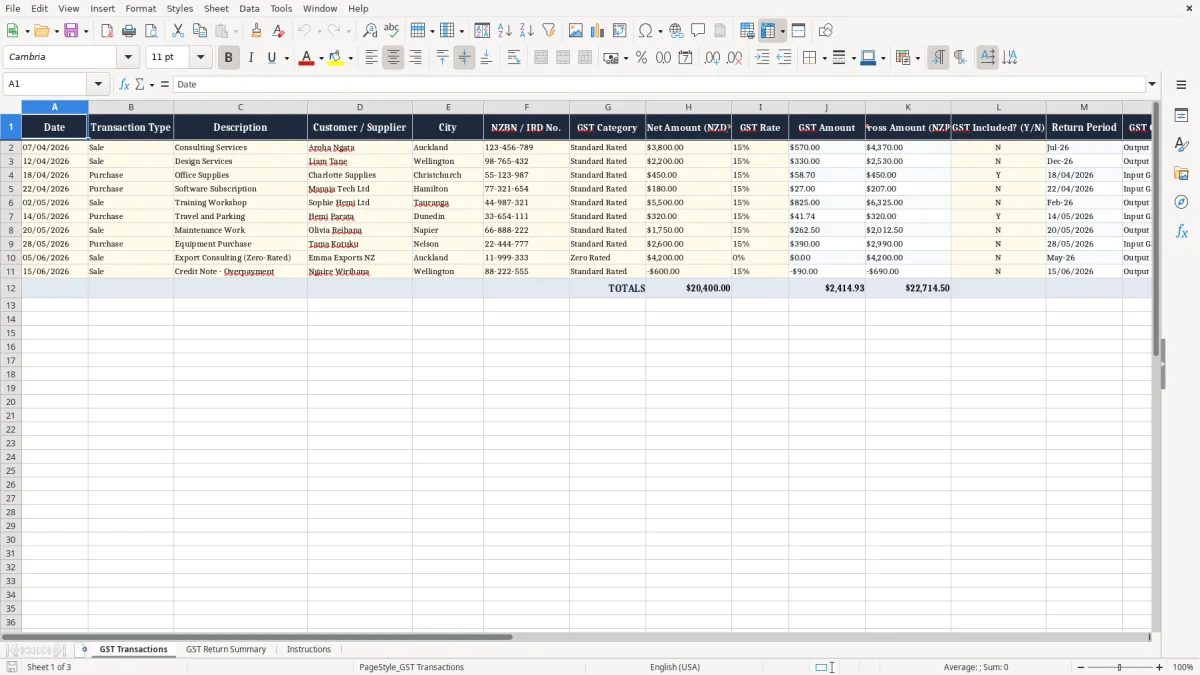
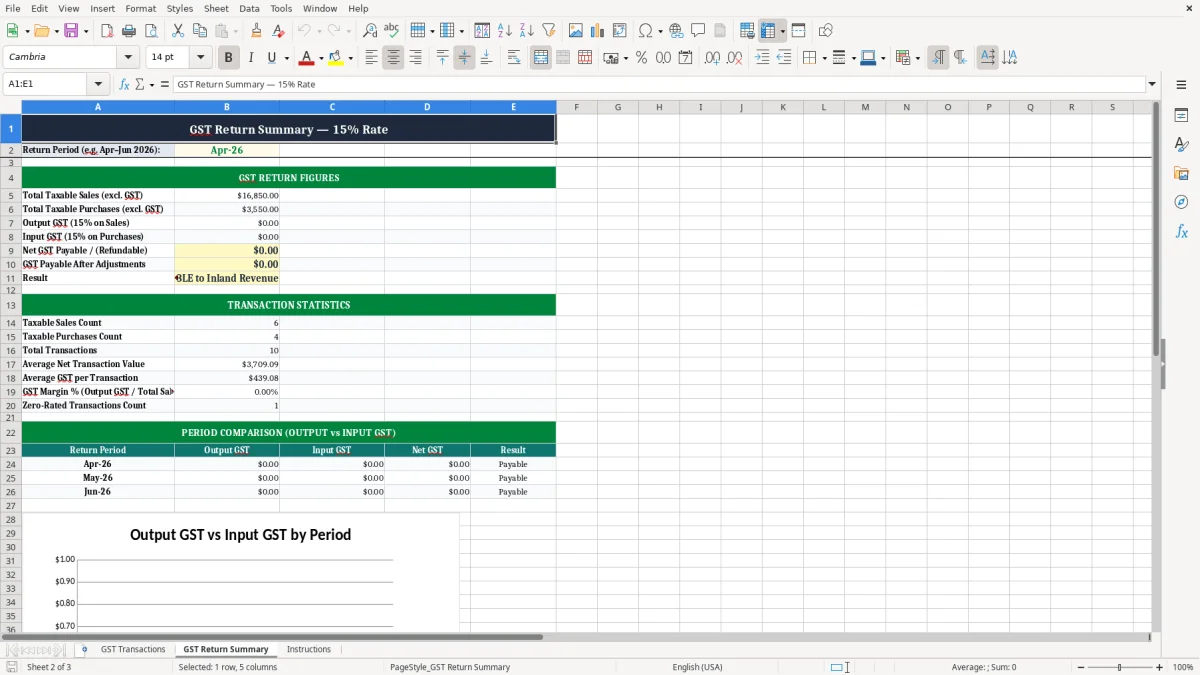
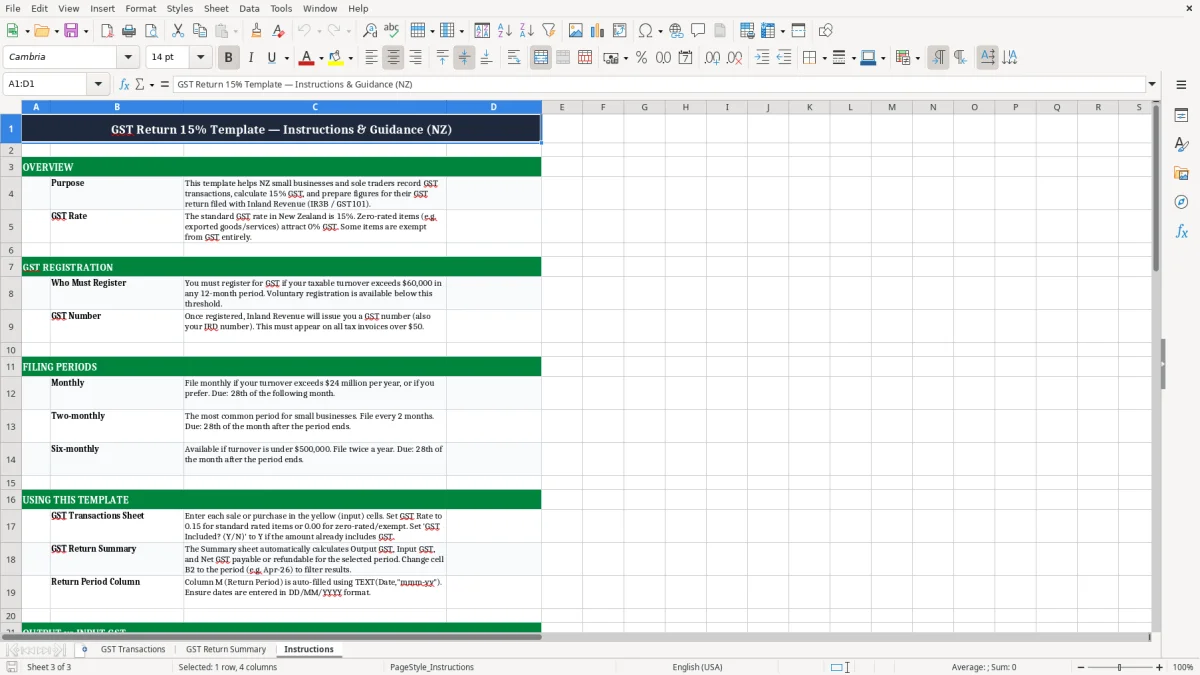
The first sheet is the data entry page, the second sheet rolls the figures into a return view, and the third sheet explains how to use it. The screenshots below show the layout and the fields you fill in.
The key benefits of this Excel template
- Keeps every GST transaction in one place so you can see sales, purchases and adjustments together.
- Captures the 15% GST rate on each line, which makes the return maths easier to check.
- Shows both net and gross values, so you can spot a missing GST amount before you file.
- Separates invoiced and paid items with a simple status field, which helps when you reconcile month-end figures.
- Gives you a return-period column, so you can sort April, May or any other filing window fast.
- Works well for a sole trader, small company or bookkeeper preparing a basic GST return.
- Reduces rework by keeping NZBN or IRD No. details alongside each customer or supplier.
Step-by-step guide
- Open the GST Transactions sheet and enter each sale or purchase on its own row. Use the date, transaction type, description and customer or supplier fields first.
- Fill in the net amount and the GST Rate at 0.15 where the supply is taxable. Check the GST category and classification so you keep standard-rated items together.
- Let the workbook calculate the GST Amount and gross amount where those cells are set up for formula entry. If you type over those cells, the summary will not match.
- Use the Return Period column to tag the correct filing window, such as Apr-Jun 2026 or Jul-Aug 2026. That makes it easier to pull one return at a time.
- Review the GST Return Summary sheet and compare the totals with your bank, sales ledger or bookkeeping file. The summary should match the figures you plan to lodge.
- Read the Instructions sheet before your first file, especially if you are dealing with mixed supplies, zero-rated items or purchases where GST was already included in the price.
Included features
16-column transaction table on the GST Transactions sheet for date, type, description, customer or supplier, city and reference details.
Built-in fields for GST Category, GST Rate, GST Amount and Gross Amount so you can work from one line item.
A GST Included? (Y/N) column for checking whether the price already includes tax.
Return Period, GST Classification, Status and Notes columns for tidy filing and follow-up.
A separate GST Return Summary sheet for rolling the transactions into a return view.
An Instructions sheet to show how to enter the data and keep the workbook consistent.
Styled headers, clear column widths and colour-coded input areas to make the sheet easier to use.
Who uses a gst return spreadsheet in New Zealand
This workbook suits the people who have to get a GST return done without turning it into a full bookkeeping project. That usually means a sole trader, a small company, a bookkeeper in a tradie office, or a club treasurer who needs the figures ready before the filing date.
Picture a Hamilton plumbing firm with 4 staff and about 60 supplier invoices a month. If 40 of those are standard-rated at 15% and you miss even 5 entries at $230 each, that is $115 of GST sitting in the wrong period.
Data entry that matches the real job
The first sheet, GST Transactions, has columns for date, transaction type, description, customer or supplier, city, NZBN or IRD No., GST category, net amount, GST rate, GST amount, gross amount, GST included flag, return period, classification, status and notes. That is enough detail to sort a month-end pile of invoices without guessing later.
When the summary matters
The GST Return Summary sheet is the part you check when the quarter ends or your 2-monthly cycle comes around. If your April and May sales total $28,000 net, the 15% GST on those sales is $4,200 before you net off eligible purchases.
By the time those quarterly totals are set, the next payroll step is keeping each employee’s tax code records aligned so the deductions match the return period.
What IRD expects for gst records and filing
Inland Revenue expects you to keep records for 7 years, and that includes the invoices and source documents behind the GST figures in this workbook. For a standard-rated supply, you need enough detail to show the supplier, date, description, amount and GST treatment.
The template fits the New Zealand GST system: the standard rate is 15%, registration becomes compulsory once taxable supplies exceed $60,000 in any 12-month period, and returns are usually filed monthly, 2-monthly or 6-monthly. If you are close to the threshold, a workbook like this is a better control than relying on memory.
Use the right period from day one
The Return Period column is important because GST is claimed and paid in the period it belongs to. A $12,000 invoice dated 30/06/2026 belongs in the June period, not July, even if the customer pays later.
Keep the numbers consistent with your return
If you use an accrual basis for GST, the date and classification fields matter more than the payment status. If you use cash basis, the status still helps, but you will rely more heavily on the payment date and the summary will need to match bank movements as well as invoices.
The workbook also helps when you prepare a provisional tax estimate or your year-end accounts, because the same figures can feed the profit and loss and the balance sheet. That means fewer re-keys when 31 March comes around.
The gst mistakes that create a messy return
The biggest mess is mixing up net and gross figures. If you treat a $1,150 invoice as net instead of gross, you overstate GST by $172.50, and that error can flow straight into the return summary.
Another common slip is recording a purchase in the wrong period because the invoice was received late or the payment was forgotten. On a 2-monthly filer with 120 transactions, even 6 misplaced lines can shift the return by several hundred dollars and waste an afternoon sorting it out.
Missing source details cause rework
If the customer name, supplier name or IRD No. is missing, you end up hunting through email, bank feeds and PDF invoices just to prove one line. That is tedious in a 20-line return; it is painful in a 300-line quarter.
Mixed supplies are where people trip
A lot of small businesses have both taxable and non-taxable items, and a spreadsheet without a proper classification column makes the split messy. If $9,000 of turnover is zero-rated or exempt and you lump it in with standard-rated sales, the GST return summary will look bigger than it should.
The same problem shows up with purchases that already include tax. If you buy office supplies for $460 inclusive and forget to separate the GST, you lose $60.00 of claimable tax on that one invoice.
Those mixed invoices also need a clear year-end record, and the income tax return worksheet keeps the taxable and exempt totals from getting blurred again.
How to make this gst sheet part of your filing routine
The trick is to tie the workbook to a fixed job you already do. For most people that is the weekly pay run, the month-end bank reconciliation, or the week before the GST return is due.
For example, if you spend 15 minutes every Friday entering that week’s invoices, a 52-week year gives you 13 hours of tidy records instead of a 5-hour scramble at filing time. That is usually enough to catch missing entries before they turn into a bad return.
Simple habits that keep it alive
- Copy the previous return period into a fresh tab or save a new monthly file so you do not overwrite last month’s figures.
- Use the Return Period column every time so April items do not drift into May.
- Check the GST Included? (Y/N) flag before you rely on a gross amount.
- Use conditional formatting or a filter to spotlight blank GST rates, missing classifications or unfiled rows.
When to move on from Excel
If you are pushing past a few hundred transactions a month, or you need bank feeds and automatic reconciliation, Xero or MYOB will save time. Excel still works well for light-to-medium volume, but once you are spending more than an hour a week fixing entries, the software starts paying for itself.
Common questions about this template
It tracks GST transactions with date, type, description, customer or supplier, GST category, net amount, GST rate, GST amount, gross amount, return period, classification, status and notes. It also includes a GST Return Summary and Instructions sheet.
Yes. The sample structure is built around New Zealand’s standard GST rate of 15%, so you can enter taxable sales and purchases without changing the core layout.
Yes. Use the Return Period column to tag the transactions for whichever filing cycle you are on, then total only the lines that belong in that period.
Yes. It has separate net amount, GST amount and gross amount fields, plus a GST Included? (Y/N) column so you can see whether the price already includes tax.
You still need the source documents behind the entries, and Inland Revenue expects you to keep business records for 7 years. The spreadsheet helps organise them, but it does not replace invoices or receipts.
If you have several hundred GST lines a month, bank feeds, or you are spending more than an hour a week fixing entries, Xero or MYOB will usually be the better fit. Excel is best when you want a clean manual control for smaller volumes.
Download
File format
Excel (.xlsx)
Compatible software
Excel, Google Sheets, LibreOffice
Price
Free