
Watercare Bill Tracker Excel – Free Template (2026)
Personal Finance
KiwiSaver Contributions Tracker Excel - Free Template
Track employee and employer KiwiSaver contributions, rates, IRD numbers and status in one NZ payroll workbook.
2026-07-04
205 downloads
4.8/5 average rating
Download template
This KiwiSaver contributions tracker Excel template helps you record each pay run, calculate employee and employer KiwiSaver amounts, and keep the IRD details together in one workbook. It includes Contributions, Summary and Instructions sheets for day-to-day payroll tracking.
Use it when you are checking a PAYE payroll, onboarding a new starter, or reconciling contributions before payday filing. The layout is built for New Zealand payroll users who need a quick record of rates, totals and status without fighting a clunky system.
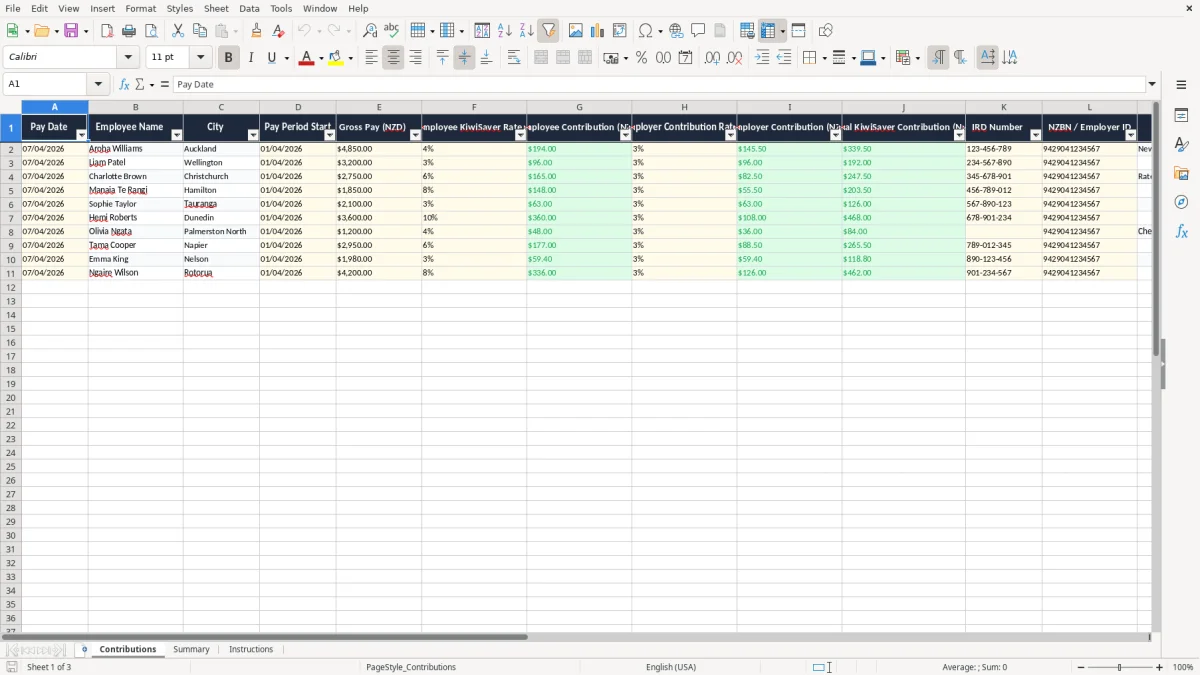
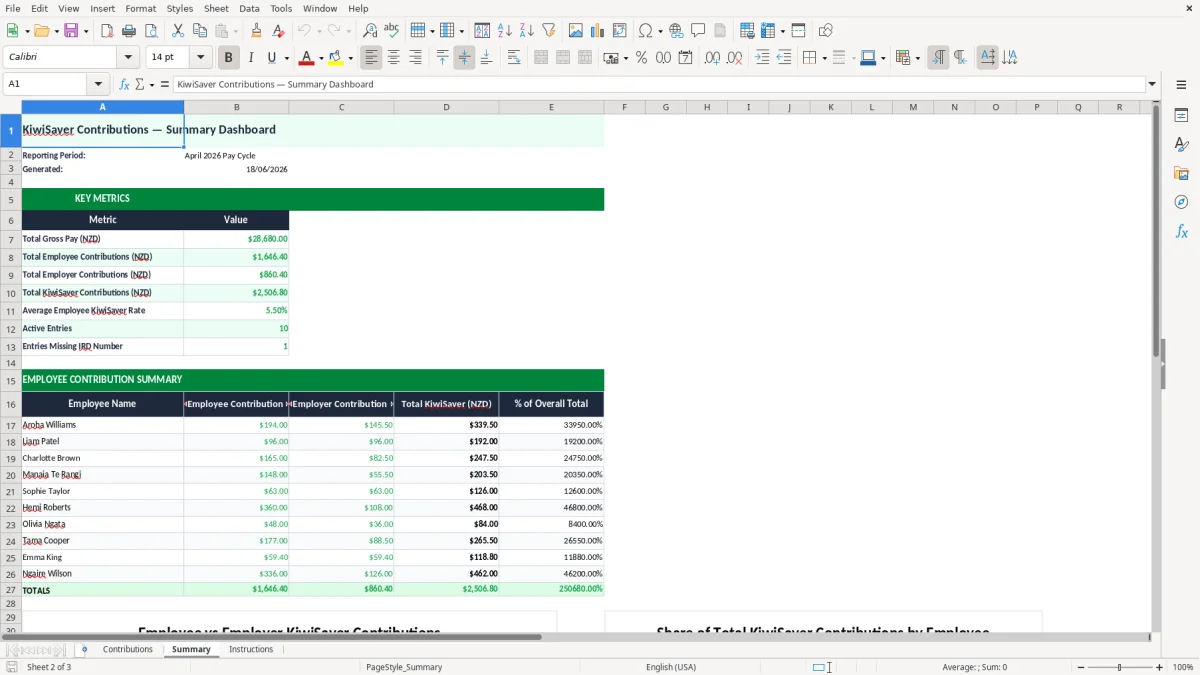
The Contributions sheet captures pay date, pay period start, gross pay, employee rate, employer rate, contribution totals, IRD number, NZBN or employer ID, notes and status. The Summary sheet rolls that into a simple view so you can see what is due and what has been processed.
The key benefits of this Excel template
- Tracks each pay run in one place so you can see employee and employer contribution amounts side by side.
- Shows the standard employer contribution rate of 3% next to the employee rate, which is useful when rates change mid-period.
- Keeps IRD number and NZBN details against each employee record, which cuts down on payroll checks.
- Helps you spot missing contribution amounts before you file PAYE and IR348 payroll information.
- Useful for a small firm with 4 staff or 40 staff because the columns stay the same no matter the pay size.
- Gives you a clear status column so you can mark items paid, pending or needing review.
- Saves time at month end by giving you one workbook to reconcile against payroll reports and bank payments.
Step-by-step guide
- Enter each pay line on the Contributions sheet. Add the pay date, employee name, city, pay period start and gross pay in NZD.
- Check the KiwiSaver rates. The sheet is set up for the employee percentage and the employer percentage, so you can record 3%, 4%, 6%, 8% or 10% where needed.
- Review the calculated contribution fields. If an employee earns $4,850.00 and is on 4%, the employee amount is $194.00; at 3% employer rate, the employer amount is $145.50.
- Fill in the IRD number and NZBN or employer ID. That makes it easier to match payroll records to your business entity or the right worker.
- Use Notes and Status to flag starters, rate changes, unpaid items or anything you need to revisit before the next pay run.
- Open the Summary sheet to review totals. Use it at the end of the week or month to check what has been processed and what still needs action.
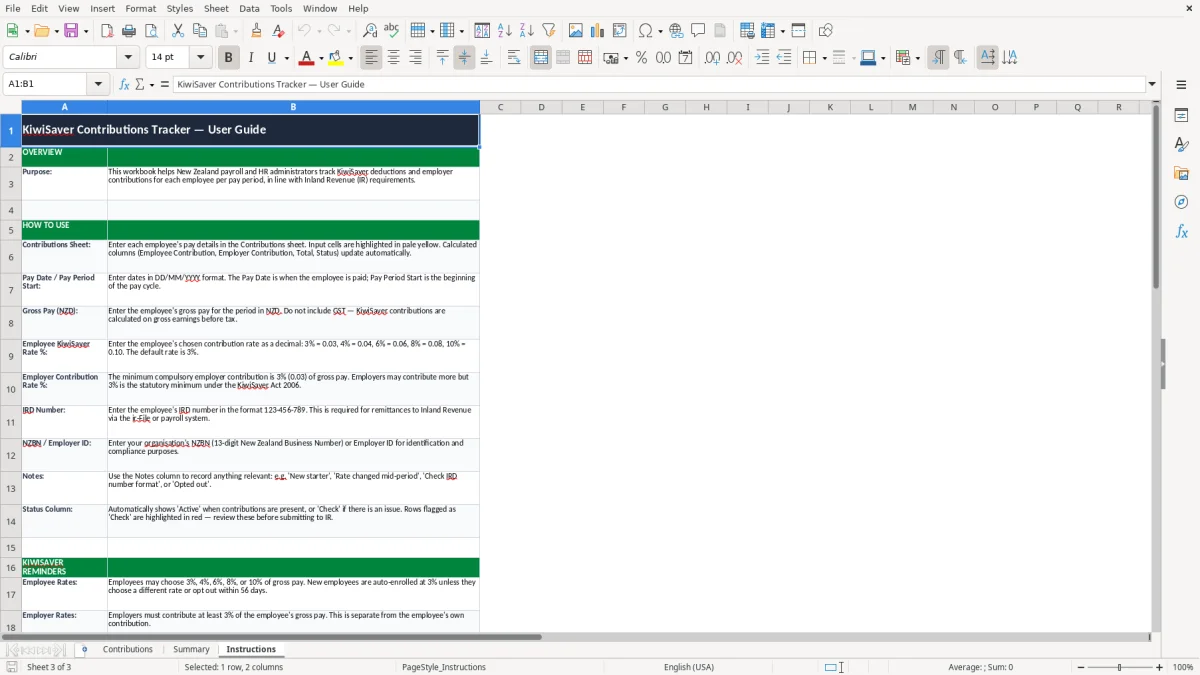
- Follow the Instructions sheet if you hand the file to someone else. It helps keep the same process in place when a new bookkeeper or office manager takes over.
Included features
Contributions sheet with 14 columns covering pay date, employee, city, gross pay, rates, contribution amounts, IRD number and status.
Summary sheet for a quick overview of totals and processing status.
Instructions sheet for setup and use, which is handy if more than one person handles payroll.
Formatted currency and percentage fields for easier entry and checking.
Designed around New Zealand payroll terms, including PAYE, IRD and NZBN.
Notes column for starter details, rate changes or exceptions.
Status column to help you sort paid, pending and review items quickly.
Who uses a KiwiSaver contributions tracker in New Zealand
This template is for the people who actually touch payroll in New Zealand: the office manager at a tradie firm, the bookkeeper at a small Ltd company, the sole trader who pays staff, or the volunteer treasurer who has picked up the payroll job. If you are running 3 staff on fortnightly pay, you can see each line clearly instead of hunting through bank lines and email threads.
The Contributions sheet (image 1) is laid out like a working payroll list, not a pretty dashboard. You get columns for pay date, employee name, city, pay period start, gross pay, employee rate, employer rate, contribution totals, IRD number, NZBN or employer ID, notes and status.
Why that matters on pay day
When you are doing a Friday pay run for a Hamilton plumbing crew with 4 staff, the real issue is speed and accuracy. A worker on $3,200.00 at 3% employee rate is $96.00; the employer 3% contribution is another $96.00, so one line tells you the full cash cost straight away.
Where the sheet fits in your month
This is the sheet you open before payday filing, before you send the payroll report, and again when you reconcile the bank payment. If one employee has a 4% rate and another is on 6%, the columns keep those differences visible without changing your whole setup.
What Inland Revenue expects for KiwiSaver records
For payroll records, Inland Revenue expects you to keep enough detail to support what was paid, who it was paid for and when it was paid. Keep payroll records for 7 years, because that is the practical record-keeping standard you need to stay safe if a query turns up later.
The key KiwiSaver rule in payroll is the compulsory employer contribution of 3% on eligible pay, with employee contributions commonly set at 3%, 4%, 6%, 8% or 10%. In this template, the percentage columns make that easy to record, and the total column shows the full contribution for each line.
Payday filing and the matching trail
If you are also handling PAYE and filing the IR348, this workbook gives you a clean matching trail between pay run, worker and contribution amounts. That matters when you have, say, 22 staff on varying rates and one rate change halfway through the period.
Example of the numbers
A worker on $4,850.00 with a 4% employee contribution owes $194.00. Add the employer 3% contribution of $145.50 and the KiwiSaver total for that pay line is $339.50, which is the kind of figure you want sitting in the spreadsheet before you finalise the pay run.
That same pay-line detail is useful when you need a provisional tax instalments tracker to keep the next payment amount aligned with the figures already in your spreadsheet.
Where payroll spreadsheets go wrong and what it costs
The most common mistake is using the wrong rate after a starter changes from 3% to 6% or after a deduction is paused. On a $3,750.00 pay, that mistake is $112.50 off the employee side alone, and once you repeat it across a few pays you can be out by hundreds.
Another problem is missing the link between the pay run and the employer record. If the IRD number or NZBN is not captured cleanly, you spend time matching lines later, and that usually happens when you are already busy with a PAYE due date or a month-end close.
Where the admin gets messy
People often leave the status column blank and then forget which lines have been checked. In a 2-week pay cycle with 18 employees, that can mean half an hour of re-checking the same records because nobody can tell what has been processed.
Why the totals matter
Because the template shows employee and employer contributions separately, you can spot an underpayment before it becomes a correction exercise. If one staff member should have $96.00 employee and $96.00 employer contributions but only $96.00 total is entered, the gap is obvious instead of hiding in a bank reconciliation.
How to turn the tracker into a payroll routine
The easiest way to keep this workbook alive is to tie it to the same payroll moment every week or fortnight. Open it when you run wages, update the lines, then check the Summary sheet before you press send on the payroll file.
Simple habits that stick
- Copy the previous pay period and update only the new dates, rates and amounts.
- Use the Notes column for starters, rate changes and leaves without adding extra tabs.
- Check the status column before each payroll deadline so nothing sits unpaid.
- Keep the workbook next to your payroll source data so you do not chase it later.
When to move on
If you are handling 25 or more employees, multiple pay cycles, or a lot of rate changes, a spreadsheet starts to feel tight. At that point Xero or MYOB is usually the better call because payroll integration and filing links save you from re-keying the same numbers.
For a small business with a handful of staff, though, this tracker is a clean way to stay on top of contributions without paying for extra software you do not need yet.
Common questions about this template
The template is set up to record the employee and employer rates beside each pay line, and it shows the contribution fields so you can track the amounts clearly. If you enter $4,000.00 at 3%, the contribution is $120.00, which makes checking simple.
Yes. You can add a note for a new starter, record the pay date and pay period start, and change the rate if the employee is on a different contribution level. That makes it useful when someone starts mid-fortnight or changes their rate part way through the year.
There are 3 sheets: Contributions, Summary and Instructions. The Contributions sheet is for the payroll lines, the Summary sheet gives you a quick totals view, and the Instructions sheet tells you how to use the workbook.
If you already run payroll through software, this template works well as a check sheet and backup record. If you are a very small employer, it can also help you stay organised before you move to a full payroll system.
Keep payroll records for 7 years so you have the support you need if Inland Revenue asks for them later. That includes pay dates, rates, contribution amounts and the matching identifier details.
Yes. A company with staff can use the NZBN and employer details, while a sole trader can use the same sheet for employee records and pay run tracking. The layout is simple enough to work for either structure.
Download
File format
Excel (.xlsx)
Compatible software
Excel, Google Sheets, LibreOffice
Price
Free