
Netball draw roster Excel Template – Free NZ (2026)
Projects & Planning
Cricket scorebook Excel - Free Template
Record New Zealand cricket match performances, calculate batting and bowling figures, and review player and season summaries in Excel.
2026-10-27
489 downloads
4.8/5 average rating
Download template
A cricket scorebook Excel spreadsheet records each player's match performance, including runs, balls, boundaries, bowling figures, catches and match result. This New Zealand club template contains a Match Scorebook for up to 100 prepared rows, a Season Dashboard with player summaries and charts, and an Instructions sheet.
Enter one row for each player appearance or innings in the Match Scorebook. Batting strike rate and bowling economy calculate automatically, while the dashboard totals matches, runs, wickets, catches, results and player selection status.
The key benefits of this Excel template
- Record match date, opposition, venue, city, competition and innings in one consistent format.
- Capture batting figures including runs, balls faced, fours, sixes and batting position.
- Track bowling overs, runs conceded, wickets, catches and run outs for each player.
- Calculate batting strike rate and bowling economy automatically instead of working them out after the match.
- Review total matches, runs, wickets, catches, batting average and win percentage on the Season Dashboard.
- Compare up to 10 named players by appearances, runs, average runs, wickets, catches and best performance.
- Give selectors a simple formula-based indication of Consider for First XI or Development Squad.
Step-by-step guide
- Open the Match Scorebook sheet and start with the pale yellow manual-entry cells. The sheet is frozen at row 2 and includes filters across the headings from Match ID to Notes.
- Enter one row for each player's match appearance or innings. Add the Match ID, date, opposition, venue, city, competition and innings number before entering the player's figures.
- Complete the player details and performance columns. Use the drop-down lists for Player Role, Innings, Player of the Match and Match Result so entries stay consistent.
- Enter batting numbers such as runs, balls faced, fours and sixes, plus bowling overs, runs conceded, wickets, catches and run outs where relevant.
- Leave Batting Strike Rate and Bowling Economy alone. Their formulas calculate from the batting and bowling figures; the Instructions sheet explains why these cells should not be overwritten.
- Check the Season Dashboard after adding fixtures. It refreshes season totals, match-result counts, player summaries and three charts from the scorebook rows.
- Keep the completed workbook with the club's official scorebooks and supporting records. The Instructions sheet recommends retaining those records for at least seven years.
Included features
Match Scorebook sheet with 24 columns covering match details, player information, batting, bowling, fielding, result and notes.
Prepared entry area from rows 2 to 101, with sample 2026 matches showing the intended New Zealand club format.
Automatic Batting Strike Rate formula using runs divided by balls faced, with a zero result when balls faced is zero.
Automatic Bowling Economy formula using runs conceded divided by overs bowled, with a zero result when no overs are recorded.
Season Dashboard showing matches played, total runs, total wickets, batting average, win percentage and total catches.
Player summary for 10 listed players with role, matches, runs, average runs, wickets, catches, best performance and selection status.
Three dashboard charts comparing player runs, player wickets and Won, Lost and Drawn match appearances.
Who uses a cricket scorebook in New Zealand
A club captain, team manager or volunteer scorer is usually the person sitting with this spreadsheet after Saturday cricket. For a Christchurch club playing two senior fixtures each weekend, the scorebook gives the committee one consistent place to review performances before the next team selection.
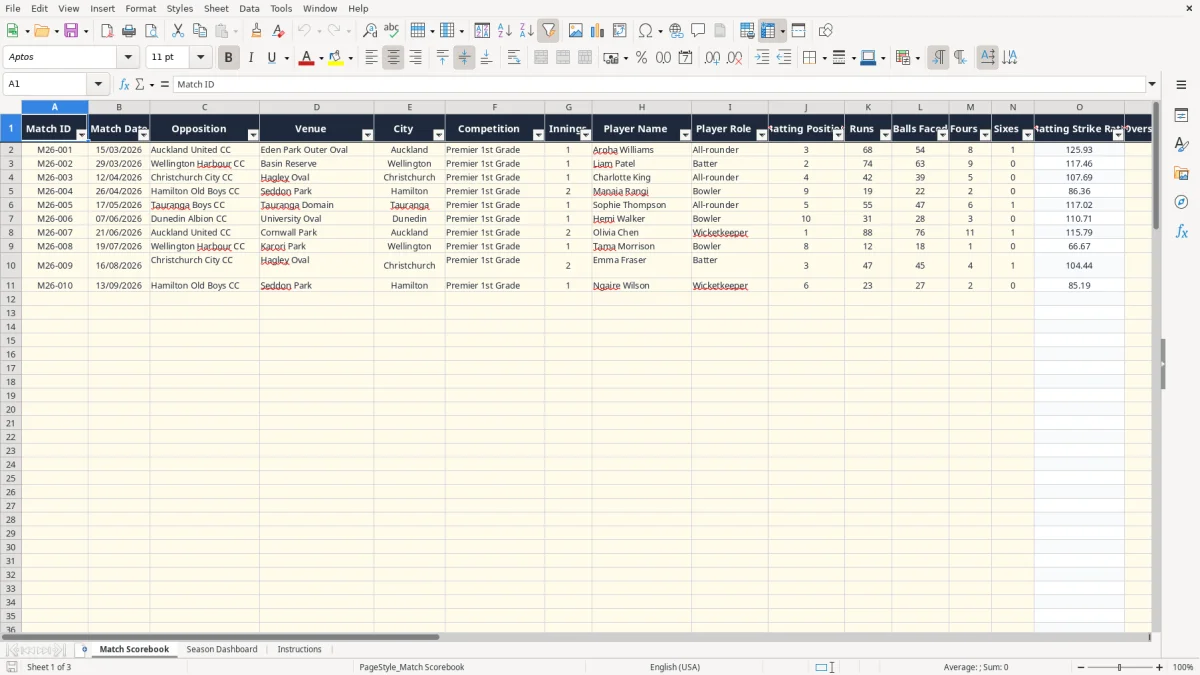
The Match Scorebook sheet records more than a traditional batting card. Its columns run from Match ID, Match Date, Opposition and Venue through to Player Name, Player Role, Batting Position, Runs, Balls Faced, Fours, Sixes, Overs Bowled, Runs Conceded, Wickets, Catches, Run Outs, Player of the Match, Match Result and Notes. Image 1 shows this full entry layout, including the sample 15/03/2026 match at Eden Park Outer Oval.
Useful after each Saturday fixture
Enter one row for each player appearance or innings. If 11 players take part in a match, that normally means 11 scorebook rows; two innings or separate player appearances can require more. A batter scoring 68 from 54 balls is shown with a calculated strike rate of 125.93, while a bowler conceding 22 runs from 4 overs shows an economy of 5.50.
The workbook has 100 prepared operational rows, from row 2 to row 101. The first rows contain example data, so replace or extend those entries carefully rather than assuming every visible name is a current squad member.
Useful at selection and club meetings
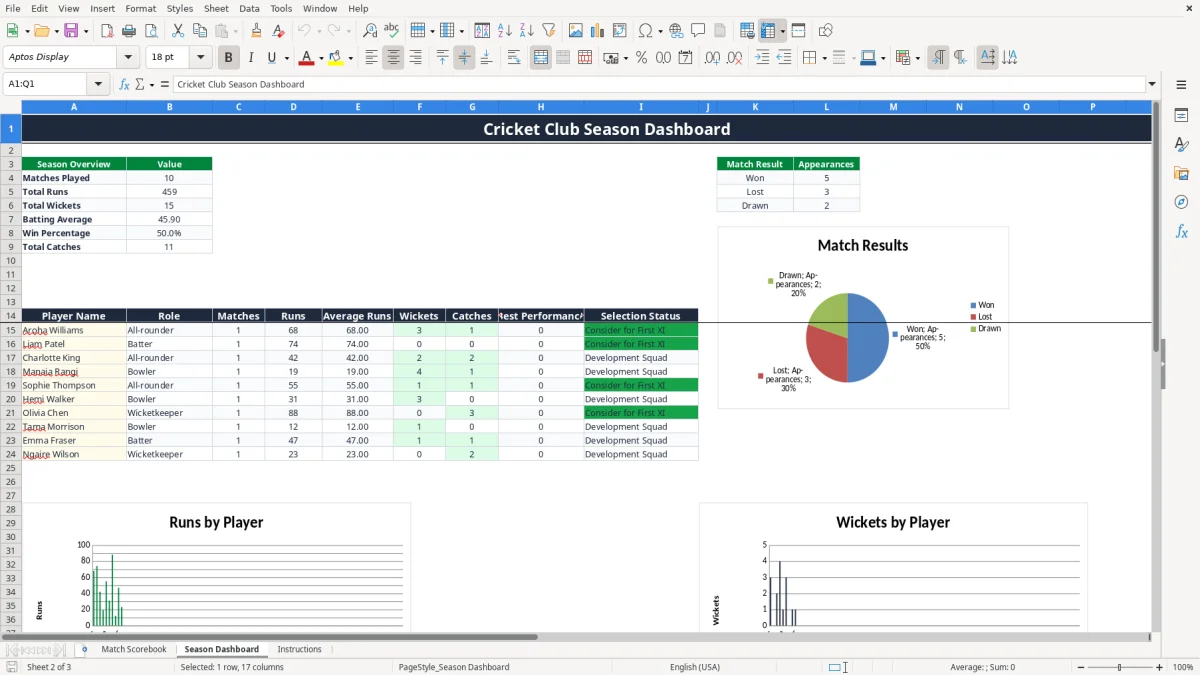
After fixtures are entered, the Season Dashboard turns the rows into a quick selection conversation. Image 2 shows the dashboard's Season Overview, result counts and player table, including matches, runs, average runs, wickets, catches and best performance. A volunteer selector can see whether a player has 3 appearances and 146 runs without adding figures by hand.
The dashboard also labels a player Consider for First XI when the calculated total runs reach 50; otherwise it shows Development Squad. Treat that as a spreadsheet prompt, not a replacement for availability, fitness, attitude or the coach's judgement.
Keeping reliable cricket records for a New Zealand club
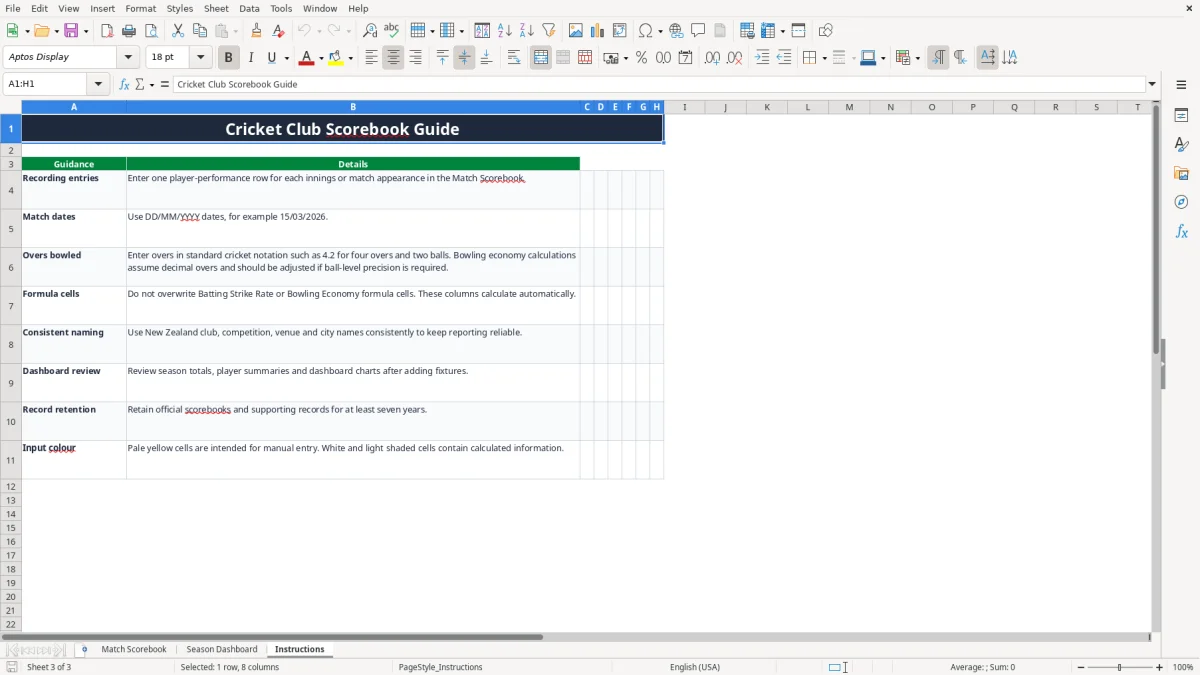
This is a sporting performance record rather than a statutory GST, payroll or IRD workbook. Its main control is accuracy: the Instructions sheet says to keep official scorebooks and supporting records for at least seven years, giving the club a useful audit trail for disputes, awards and historical comparisons.
Use dates in DD/MM/YYYY format, such as 15/03/2026. Keep New Zealand club names, competitions, cities and venues consistent. Entering Hagley Oval once and Hagley Cricket Oval another time may look harmless, but inconsistent naming makes later filtering and manual review harder.
Overs need cricket context
The Instructions sheet specifically describes overs such as 4.2 for four overs and two balls. That is standard cricket notation, not ordinary decimal arithmetic: 4.2 overs means 26 balls, not 4.2 completed overs. The workbook's Bowling Economy formula divides Runs Conceded by the entered Overs Bowled value, so the displayed result is only reliable when the input convention matches the workbook's stated assumption.
For example, 22 runs in 4.0 entered overs gives 5.50. If 22 runs came from four overs and two balls, entering 4.2 produces 5.24 mathematically, but the true ball-based economy is 22 divided by 4.333 overs, or about 5.08. My practical stance is to use the sheet for consistent club comparison, but flag ball-level calculations for close statistical work rather than treating 4.2 as a decimal fraction.
Use the built-in controls
The scorebook provides lists for Player Role, with Batter, Bowler, All-rounder and Wicketkeeper; Innings, with 1 or 2; Player of the Match, with Yes or No; and Match Result, with Won, Lost or Drawn. These controls reduce spelling differences and make the dashboard's COUNTIF calculations dependable.
Do not overwrite Batting Strike Rate or Bowling Economy. The formulas return blank when Match ID is blank and protect against division by zero. The dashboard uses SUM, COUNTIF, AVERAGE, VLOOKUP and SUMIF-style calculations to summarise the prepared scorebook range.
Where club scorekeeping falls over
The most expensive scorebook mistakes are not usually dramatic formula failures. They are small entry errors repeated across a season: a player name typed three different ways, a match result left blank, or a bowler's overs entered as 4.2 without understanding how the formula treats that value.
One player becomes three players
Suppose a scorer enters Aroha Williams in six rows, then uses Aroha WIlliams or A. Williams in two more. The dashboard's player summary searches for an exact name, so the eight appearances can split into separate records. A selector may then see 6 matches and 210 runs instead of the player's true 8 matches and 264 runs. The fix is a club naming convention and copy-and-paste from an agreed squad list.
Zeros can hide missing information
A batter with no bowling spell should have zeroes in the bowling statistics, but a missing batting figure is not necessarily a genuine zero. If Balls Faced is blank or incorrect, the strike rate can be misleading. Likewise, entering 0 overs for a bowler who actually delivered 8 overs makes the dashboard understate workload and leaves Bowling Economy at zero.
Use the Notes column for context such as retired hurt, did not bat or scorecard correction. The workbook has no ball-by-ball event log, umpire verification workflow or separate correction register, so the original scorebook remains important when a figure is challenged.
Selection labels are not cricket judgement
The dashboard's selection status is driven by total runs: a player at 50 runs receives Consider for First XI, while a player at 49 receives Development Squad. That one-run boundary can create an awkward result. A bowler with 0 runs but 8 wickets will still fall into the second label, so the captain should review wickets, economy, availability and role before acting on the label.
Another common issue is treating the sample rows as current season truth. The workbook includes populated examples such as 15/03/2026, 29/03/2026 and 12/04/2026; replace them with the club's confirmed results before presenting totals at a committee meeting.
Making the scorebook part of the weekly club routine
The spreadsheet works best when score entry is attached to an existing club task rather than left until the end of the season. Make the scorer responsible for entering the Match ID, date, opponent and player rows on Sunday morning, while the captain checks the result and unusual notes before Monday selection.
A simple post-match routine
- Copy the official scorecard and enter the match while the innings figures are still familiar.
- Use the four drop-down lists instead of typing role, innings, award and result values manually.
- Check that the number of player rows matches the scorecard and that runs, wickets and catches are plausible.
- Open the Season Dashboard and scan the totals and charts before the team-selection meeting.
For example, after five matches a club might expect 55 player-performance rows if every match used 11 players. If the scorebook contains 48 or 73 rows, stop and reconcile it before relying on player averages or selection status.
Protect the calculated columns
Keep the pale yellow input cells for manual entry and leave the white or lightly shaded calculated cells alone. The Instructions sheet identifies Batting Strike Rate and Bowling Economy as formula cells. Save a dated copy after each completed fixture, but keep the workbook's row structure intact so the dashboard continues to read rows 2 to 101.
My preference is to keep this workbook for a small club with one or a few teams and up to 100 prepared performance rows. If the club needs ball-by-ball scoring, multiple grades, live mobile entry, many seasons, automatic player imports or a larger database, move to dedicated cricket scoring software or a structured system such as Excel tables, Xero or MYOB only where the requirement is financial. Do not force a simple scorebook to become a full competition-management system.
At the end of the season, export or retain the completed workbook with the official scorecards. The Instructions sheet recommends at least seven years of retention, which gives the club a clear routine for historical awards and resolving later questions.
Common questions about this template
It records match and player information across 24 columns, including opposition, venue, competition, innings, batting position, runs, balls faced, fours, sixes, overs bowled, runs conceded, wickets, catches, run outs, Player of the Match, result and notes.
The Match Scorebook has prepared operational rows 2 to 101, giving 100 rows. Some rows contain populated sample matches, so replace those examples with your club's confirmed data before using the dashboard totals.
Yes. Batting Strike Rate calculates as runs divided by balls faced multiplied by 100. For example, 68 runs from 54 balls gives 125.93. The formula returns zero when balls faced is zero and should not be overwritten.
Bowling Economy calculates as runs conceded divided by Overs Bowled. The Instructions sheet notes cricket notation such as 4.2 for four overs and two balls, but the formula assumes decimal overs, so use the result consistently and take care with ball-level comparisons.
The dashboard shows matches played, total runs, total wickets, batting average, win percentage and total catches. It also summarises 10 listed players by role, matches, runs, average runs, wickets, catches, best performance and selection status, with three charts.
Yes, you can identify teams through competition, match and player entries, but the workbook has one shared scorebook and a fixed 100-row prepared range. For several teams or larger seasons, keep naming consistent and check whether a more structured scoring system is needed.
Download
File format
Excel (.xlsx)
Compatible software
Excel, Google Sheets, LibreOffice
Price
Free