
Rugby Subs Fees Tracker Excel – Free Template (2026)
Accounting & GST
Sole Trader Income Excel - Free Template
Track sole trader income, expenses, GST and payment status across four Excel sheets for New Zealand tax and year-end records.
2026-07-20
330 downloads
4.8/5 average rating
Download template
This sole trader income and expenses Excel spreadsheet records New Zealand sales and costs, calculates GST at 15%, and summarises your trading result. It contains Income, Expenses, Summary and Instructions sheets, with space for invoice details, payment status and supporting bookkeeping notes.
It suits a New Zealand sole trader who wants a clear record before preparing an IR3, checking a GST return or sending figures to a bookkeeper. The sample data shows how the file works, including invoice numbers, client names, descriptions and GST-inclusive totals.
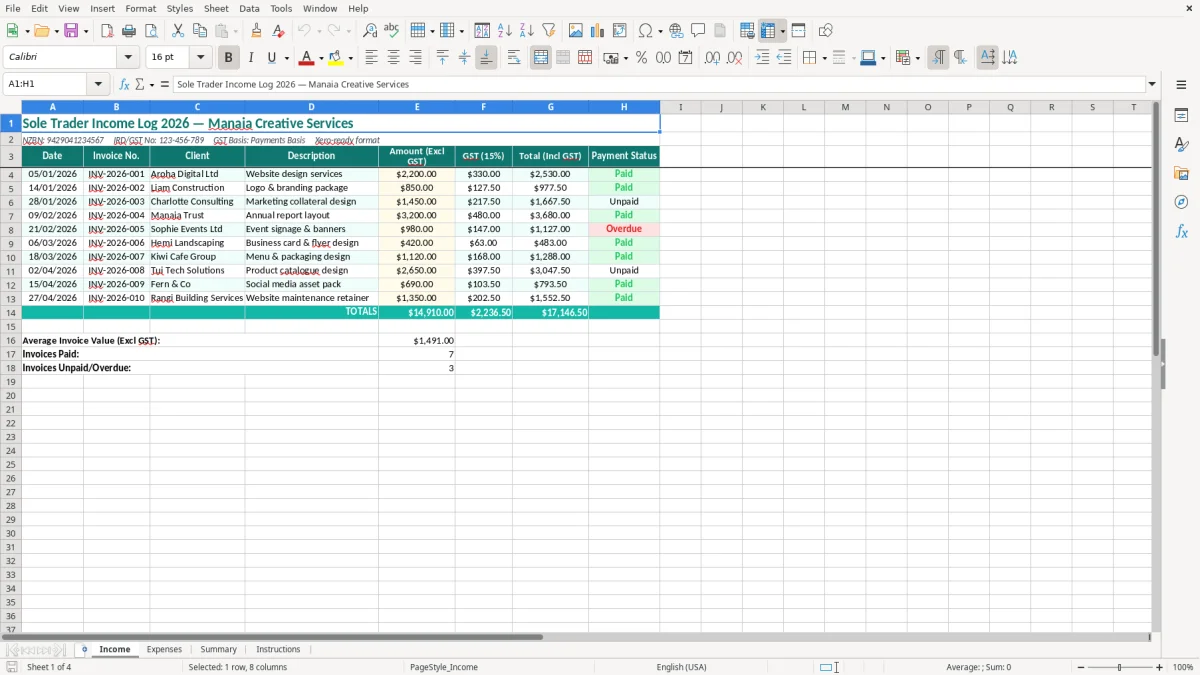
Image 1 shows the Income sheet, headed Sole Trader Income Log 2026, with the NZBN, IRD/GST number and payments-basis note across the top. The Expenses sheet, Summary sheet and Instructions sheet follow the same clean teal layout, with pale yellow input cells to show where you type.
The key benefits of this Excel template
- Record each sale with the date, invoice number, client, description, amount excluding GST, 15% GST and total including GST.
- See whether an invoice is Paid, Unpaid or Overdue so outstanding cash is not confused with earned income.
- Enter business costs separately from sales, making it easier to calculate the net result for your sole trader records.
- Keep GST-exclusive and GST-inclusive figures visible instead of working backwards from bank deposits.
- Use the Summary sheet to review income, expenses and the resulting trading position before your tax or GST work.
- Keep a consistent DD/MM/YYYY format and invoice numbering pattern such as INV-2026-001.
- Give your bookkeeper an organised Excel file that can be checked against bank statements, invoices and receipts.
Step-by-step guide
- Open the Instructions sheet first and check the notes about the intended GST basis, sample information and data-entry approach.
- Go to Income and replace the sample rows with your own sales. Enter the date, invoice number, client, description and amount excluding GST; check the calculated GST and total.
- Choose the correct payment status for each invoice, such as Paid, Unpaid or Overdue. Update the status when money reaches your bank account.
- Open Expenses and enter each business purchase from a receipt, supplier invoice or bank transaction. Keep private spending out of the business expense list.
- Check the Summary sheet after each weekly or monthly update. Compare the totals with your bank account, sales invoices and expense receipts.
- Before a GST return or year-end, filter or review the entries for missing dates, duplicated invoice numbers, incorrect GST treatment and unpaid items.
- Save a dated copy and retain the source invoices, receipts and bank records. Send the completed file and supporting documents to your bookkeeper when your records are ready.
Included features
Four sheets: Income, Expenses, Summary and Instructions, with a consistent teal header and bordered table design.
Income columns for Date, Invoice No., Client, Description, Amount (Excl GST), GST (15%), Total (Incl GST) and Payment Status.
Formula-ready GST calculation that applies 15% to the entered GST-exclusive income amount.
A visible business-information area for the NZBN, IRD/GST number, GST basis and Xero-ready bookkeeping reference.
Currency formatting shown as $1,234.00 and dates formatted as DD/MM/YYYY for consistent New Zealand records.
Input cells use a pale yellow fill, while headings and calculated areas use contrasting colours for quick checking.
Sample invoices demonstrate paid, unpaid and overdue income entries, including invoice references such as INV-2026-001.
How sole traders use an income and expenses spreadsheet in New Zealand
A sole trader usually opens this file when the bank account is busy but the bookkeeping is not yet under control. A self-employed electrician might add several completed jobs each Friday, while a freelance designer may enter three or four invoices after sending them to clients. The point is to capture the transaction while the invoice or receipt is still in front of you.
Useful for weekly bookkeeping
Take the sample income row of $2,200.00 excluding GST. At 15%, GST is $330.00 and the invoice total is $2,530.00. If that invoice is paid, the Payment Status column helps distinguish money received from the $850.00 invoice that is still waiting on the client.
For a Hamilton plumber with 25 invoices a month, entering each job separately is more useful than writing one monthly bank deposit. The invoice number, customer and job description make it possible to trace a $1,150.00 payment back to the right work, even when several customers pay on the same day.
Handy at month-end and 31 March
A sole trader can use the Expenses sheet after reconciling the business account each month. A Christchurch photographer might have $4,800.00 of sales, $1,350.00 of deductible costs and $3,450.00 before other adjustments; the Summary sheet gives a quick sense-check, not a replacement for a complete tax calculation.
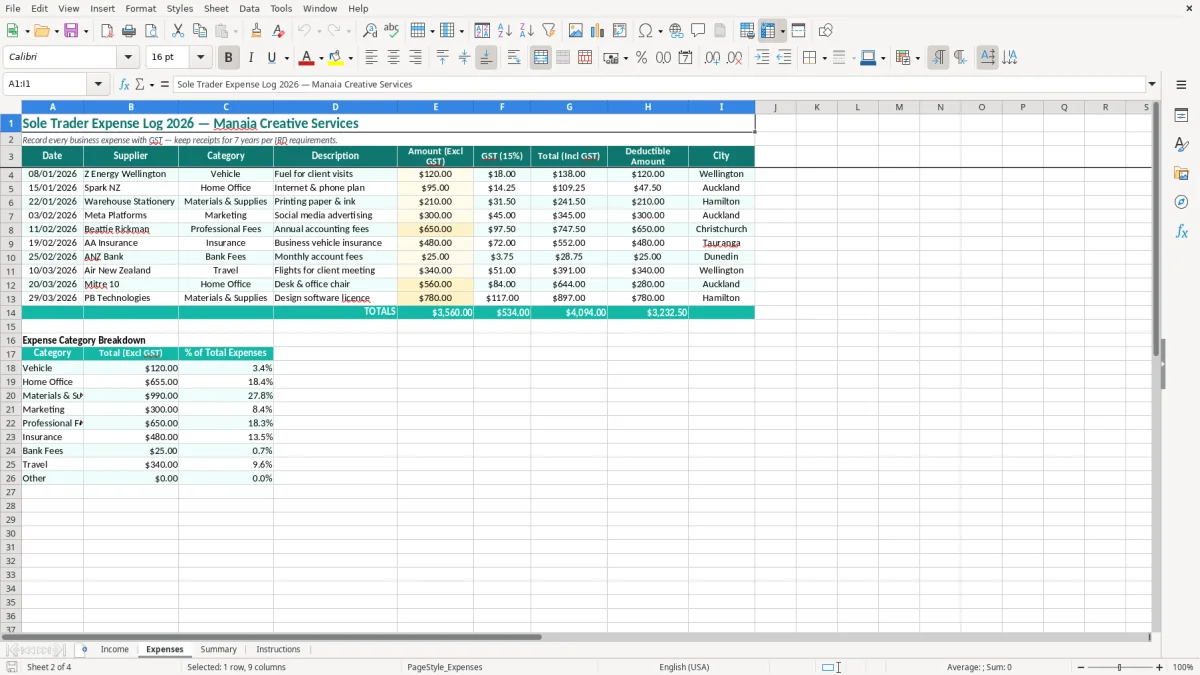
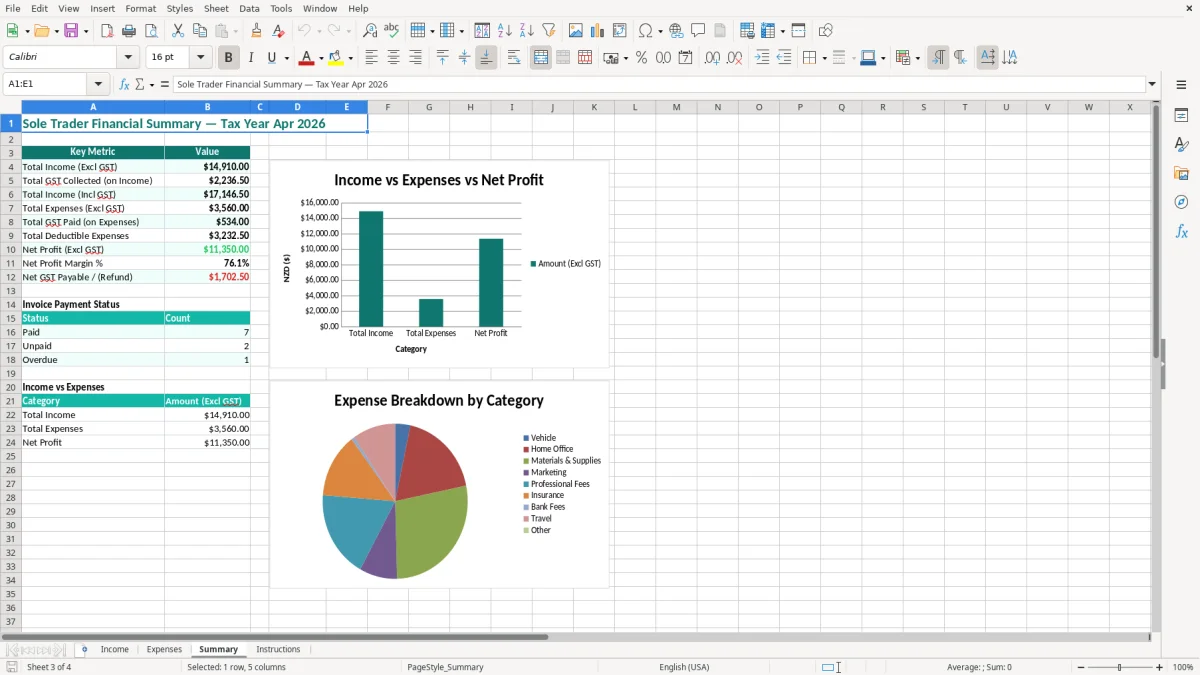
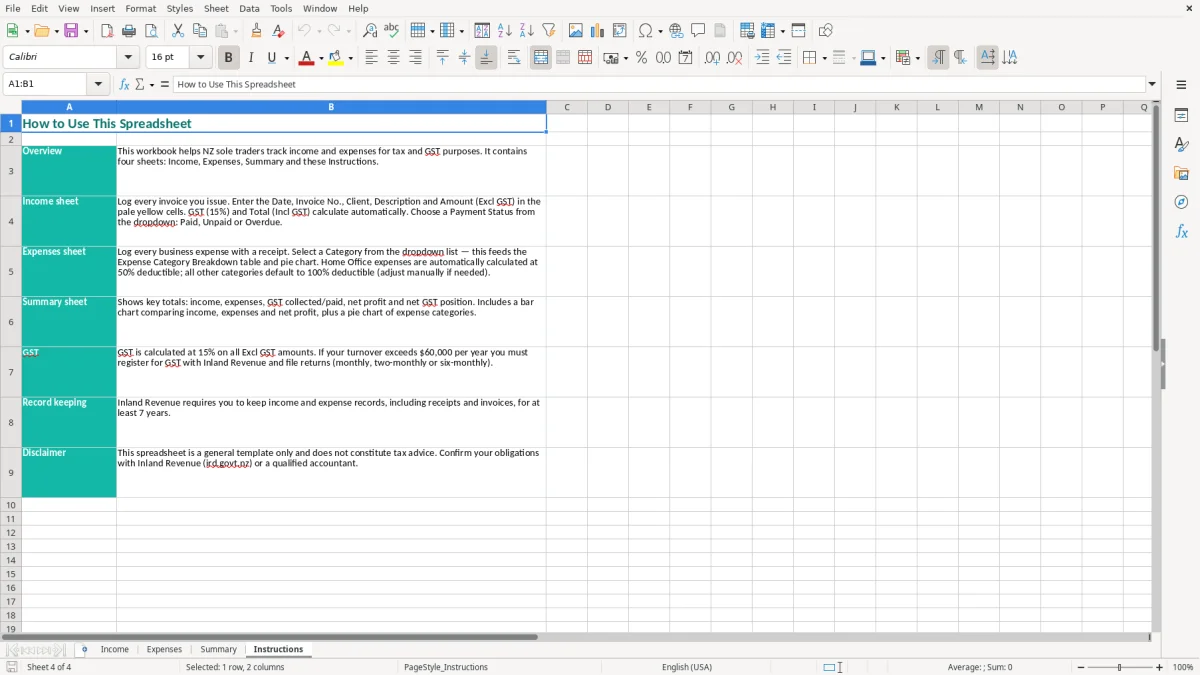
Image 1 shows the Income layout clearly: the identifying information sits above the table, and the eight columns run from Date through Payment Status. Image 2 shows the separate Expenses area, so sales and costs do not get mixed. Image 3 brings the totals together, while image 4 provides the instructions to refer to when entering a new row.
What Inland Revenue requires from a sole trader record
Your records need to support the figures in your IR3 individual income tax return and any GST return. Inland Revenue requires business records to be kept for 7 years, so the spreadsheet should be stored with the original invoices, receipts, bank statements and other evidence rather than treated as the only record.
GST registration and the payments basis
GST registration is compulsory when taxable turnover exceeds $60,000 in any 12-month period, although a business can register earlier. The standard GST rate is 15%. The sample Income sheet states Payments Basis, so the timing of a payment matters: an invoice for $2,200.00 plus $330.00 GST is not automatically the same as cash received on the invoice date.
GST returns may be monthly, 2-monthly or 6-monthly. For most growing sole traders, 2-monthly filing is a better discipline than 6-monthly filing because a $12,000 GST bill is less likely to build up unnoticed. Taxable supply information must support the supply, including the supplier details, date, description and amount; keep the actual documents behind the spreadsheet.
Income tax and business identity
A sole trader does not have a separate legal entity from you. You use your personal IRD number for income tax, and an NZBN can identify the business when dealing with customers and suppliers. Your standard balance date is 31 March, and provisional tax may apply after the first assessment creates a sufficient residual income tax liability.
The file's IRD/GST number and NZBN line is a practical identity check, not proof that the details are correct. Confirm the GST treatment of each cost: a $115.00 GST-inclusive purchase may contain $15.00 GST, but private costs, exempt supplies and some mixed-use expenses cannot simply be claimed in full.
The next step is to separate those GST-inclusive figures from items that belong in the company return, which is where an IR4 tax workings sheet becomes useful for reconciling private, exempt and mixed-use expenses.
Where sole trader records fall over and create extra work
The most expensive errors are usually small entries repeated for months. One sole trader enters GST-inclusive sales into the Amount (Excl GST) column. A $1,150.00 sale then produces $172.50 GST instead of the correct $150.00, overstating GST by $22.50 on one transaction and $675.00 across 30 similar sales.
When payment status is ignored
Another common failure is leaving every invoice as Paid. A business may show $18,000.00 of invoiced work while only $11,000.00 has arrived in the bank. That makes cash planning unreliable and can hide a customer who is 60 days overdue. Conversely, changing dates to match deposits can damage the audit trail because the invoice date, payment date and GST timing are different facts.
Duplicate invoice numbers cause trouble when a customer queries a bill or a bookkeeper imports the data into accounting software. If INV-2026-014 is used twice, two $900.00 invoices can look like one corrected invoice or a duplicate sale. Keep the numbering sequence intact and use a credit note or clear adjustment rather than deleting history.
Costs that are not business costs
Private petrol, household purchases and personal drawings are often entered as expenses because they appear on the same bank account. A sole trader who records $6,000.00 of private spending as deductible costs could reduce the apparent profit by $6,000.00 and create a poor tax position if the error is carried into the IR3.
Missing receipts are just as painful. At year-end, finding 40 unexplained transactions at an average of $85.00 means chasing $3,400.00 of evidence. The fix is not more complicated formulas; it is entering the transaction while the receipt is available and reconciling the Summary totals to the bank before filing.
How to make the spreadsheet part of your bookkeeping routine
A spreadsheet only works when updating it is tied to something you already do. Set aside 20 minutes every Friday after checking the business bank account. Enter new sales in Income, add receipts to Expenses and update payment statuses while the week is still easy to remember.
Use a fixed checking sequence
- Start with the bank statement and tick off paid invoices rather than guessing from memory.
- Check that every sales amount is GST-exclusive before accepting the 15% calculation.
- Look for blank dates, duplicate invoice numbers and expenses with no supporting receipt.
- Review the Summary sheet at month-end and save a copy such as SoleTrader_2026-01.xlsx.
Keep the sample row until you understand the columns, then replace it carefully rather than inserting random fields. The pale yellow input formatting is a useful visual cue: type into the intended entry cells and avoid overwriting headings or formulas. If you add rows, copy the existing row's formatting and formulas so the Summary remains complete.
Know when Excel has reached its limit
This template is sensible for a straightforward sole trader with perhaps 20 to 100 transactions a month. If you have 500 sales, several bank accounts, stock, payroll or regular GST adjustments, manual checking becomes a risk. At 300 transactions a month, even 2 minutes per entry is 10 hours of admin each month.
Move to Xero or MYOB when bank feeds, recurring invoices, receipt capture and GST filing will save more time than the software costs. Keep this workbook as a useful backup or planning tool, but do not run two competing ledgers indefinitely: choose one source of truth and reconcile it regularly.
That same single-source approach also makes it easier to keep a separate tax instalments tracker aligned with your year-end numbers.
Common questions about this template
Yes, it can help organise income, expenses and GST amounts, but it is not a substitute for the underlying invoices and receipts. Check that each transaction has the correct GST treatment and that the GST basis in the workbook matches your registration and filing method.
The Income sheet uses the standard New Zealand GST rate of 15%. It calculates GST from the Amount (Excl GST) figure, so a $1,000.00 entry produces $150.00 GST and a $1,150.00 total. Check zero-rated, exempt and private-use items separately.
It provides an organised starting point for the income and expense figures used in an IR3, but the Summary is not a complete tax calculation. You still need to consider depreciation, business-use adjustments, home-office costs, vehicle claims and other deductions supported by your records.
Follow the accounting and GST basis you use. This workbook's sample identifies a payments basis, so payment timing matters for GST. Keep the invoice date and payment status accurate rather than changing the invoice date to match a bank deposit.
Inland Revenue requires business records to be kept for 7 years. Retain the workbook with invoices, receipts, bank statements and other supporting documents, and keep dated backups so a damaged or overwritten file does not remove your history.
Yes, you can still use the Income and Expenses sheets to track trading activity, but do not claim GST or present yourself as GST-registered. Set aside the GST columns or record figures consistently, and update the business details and Instructions sheet for your actual position.
Download
File format
Excel (.xlsx)
Compatible software
Excel, Google Sheets, LibreOffice
Price
Free