
Rugby Subs Fees Tracker Excel – Free Template (2026)
Accounting & GST
Bright Line Property Test Excel - Free Template
Calculates NZ bright-line property tax, with Calculator, Summary and Instructions sheets for dates, gains and taxable amounts.
2026-07-03
199 downloads
4.8/5 average rating
Download template
This Excel template helps you test whether a property sale falls inside New Zealand’s bright-line period and shows the likely taxable gain. It includes three sheets: Calculator, Summary and Instructions.
You enter the purchase and sale details on the Calculator sheet, review the result on Summary, and use Instructions if you need help with the fields. It is built for investors, trustees and owners who want a quick working answer before they talk to their accountant.
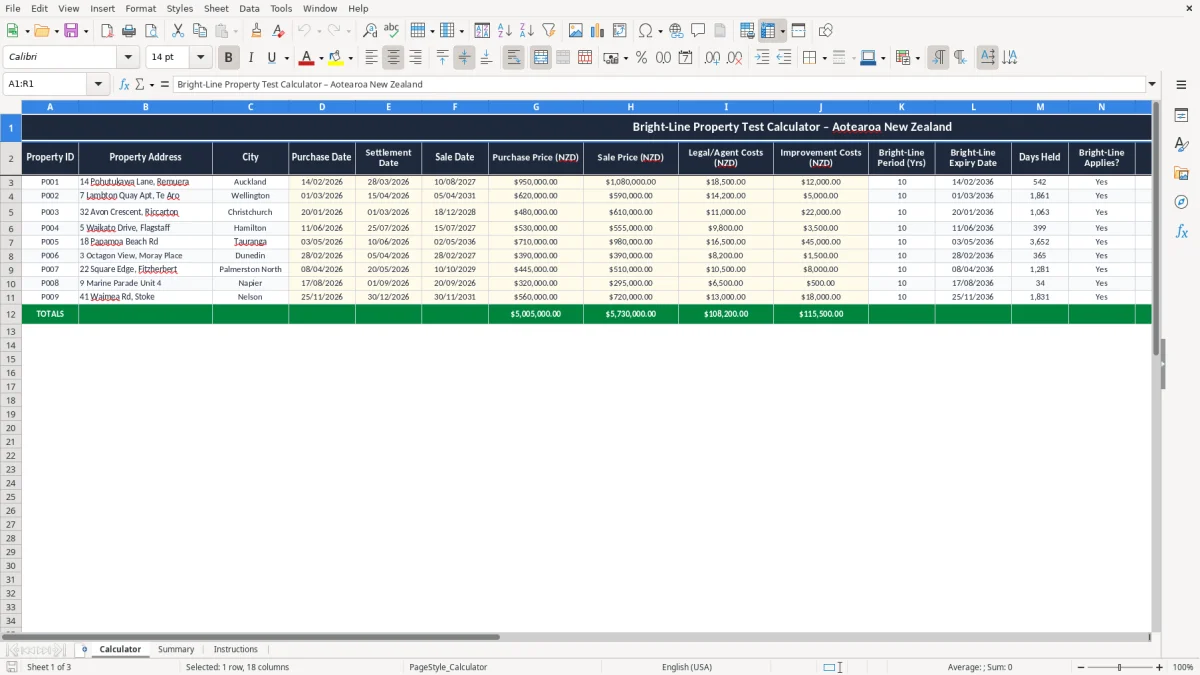
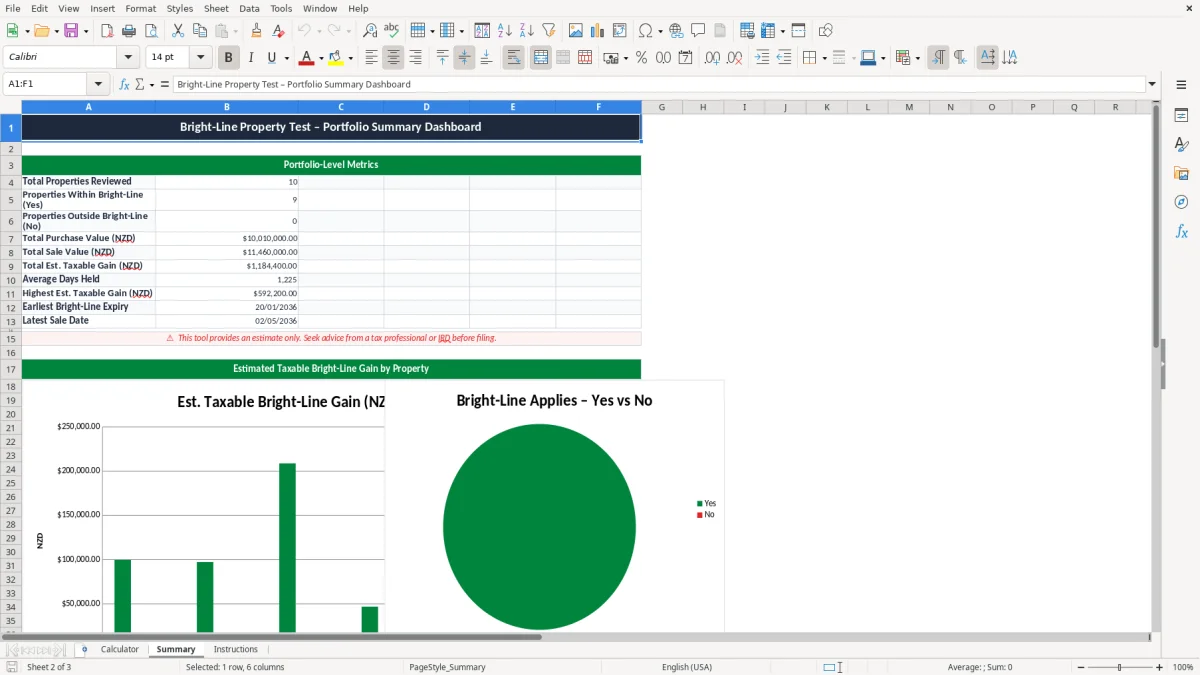
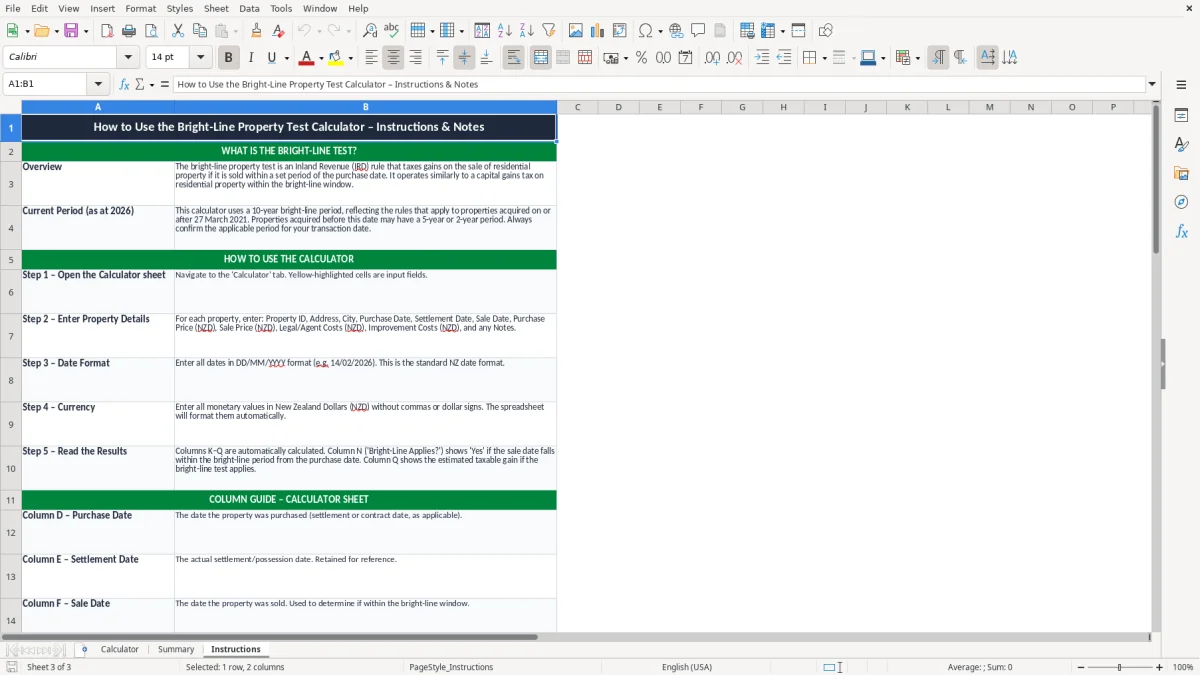
Image 1 shows the Calculator sheet with input rows, result lines and date-based formatting. Image 2 shows the Summary sheet, and image 3 contains the Instructions tab.
The key benefits of this Excel template
- Helps you test a property sale quickly using purchase and sale dates.
- Shows the taxable gain in dollars, so you can see the size of the possible bill early.
- Separates inputs from outputs, which makes it easier to spot a bad date or wrong price.
- Gives you one place to keep the figures you need for a conversation with your adviser or Inland Revenue.
- Reduces the chance of missing a cost that changes the gain, such as a capital improvement or selling expense.
- Keeps the process simple for one property or a small portfolio, without needing accounting software.
- Works as a quick planning tool when you are deciding whether to sell now or hold past the bright-line date.
Step-by-step guide
- Open the Calculator sheet and enter the property details in the highlighted input cells. Start with the purchase date, settlement date and sale price so the test can be checked first.
- Enter the amounts needed to calculate the gain. If you have selling costs or improvements that affect the result, put them into the relevant lines rather than guessing.
- Check the result area for the bright-line outcome. The sheet is designed to show whether the property falls inside the bright-line period and what the taxable amount looks like.
- Review the Summary sheet for the cleaner view of the numbers. This is the page you can use when you want to compare more than one property or keep a record for later.
- Use the Instructions tab if you are unsure what each field means. That sheet is there to keep the process consistent every time you use the workbook.
- Save a copy for each property or sale. That way you have a dated record if you need to revisit the numbers at 31/03/2026 or when you prepare your tax return.
Included features
Three-sheet workbook: Calculator, Summary and Instructions.
Highlighted input cells to make the date and amount fields easy to spot.
Currency formatting in dollars and cents for property values, gains and costs.
Date formatting in DD/MM/YYYY so settlement dates are clear.
A clean summary view for the final result, useful for notes and file keeping.
Simple layout with freeze panes and hidden gridlines for easier reading.
Built for quick scenario checking when you are comparing a sale now with a sale after the bright-line period.
Who uses a bright line property test calculator in New Zealand
This worksheet is for people who need a fast answer on a property sale, not a long tax memo. A first-home investor, an inherited-property trustee or a small property partner can use it to see whether the sale sits inside the bright-line period and what profit may be taxable.
In practice, that often means a decision made around settlement or at year end. If you bought a unit for $680,000, spent $24,000 on improvements and are now selling for $790,000, the calculator helps you see the gain before you lock in the move.
Typical use cases
A couple with one rental might use it before signing sale documents. A property bookkeeper might use it when a client has two or three sales to sort out before their IR3 or company return.
Why a spreadsheet works well
For one property, a spreadsheet is usually quicker than opening software and cheaper than paying someone to do every scenario. It also gives you a clean record of the purchase date, sale date and cost lines in one place.
Bright line property rules and records you need to keep
The bright-line rules sit alongside ordinary income tax, so you still need proper records for the property deal. Keep your paperwork for 7 years, because Inland Revenue expects records that support the dates, amounts and costs you claim.
The key number is the bright-line period that applies to your property, and the tax cost is your marginal income tax rate on any taxable gain. For a $120,000 gain, the tax can become large very quickly if the sale falls inside the test period.
What to keep beside the workbook
Keep the sale and purchase agreements, settlement statements, lawyer invoices and evidence for any capital work you include. If you are a sole trader or a company, keep the file linked to your IRD number and your year-end records so the numbers line up later.
A practical tax stance
Use the spreadsheet as the first pass, then treat the result as the amount to test against your actual tax position. That is better than guessing from memory, especially when there are multiple owners or a trust structure involved.
That same paper trail usually feeds straight into an IR3 return, where the sale figure needs to match the records you have already tied to your IRD number and year-end accounts.
Where bright line spreadsheets go wrong and what it costs
The biggest mistake is getting the dates wrong. One settlement date entered as 03/04/2026 instead of 03/04/2025 can flip the outcome, and that can change a taxable gain into a non-taxable one or vice versa.
Another common error is forgetting selling costs or improvements, which makes the gain look larger than it really is. On a $95,000 gain, even a missed $8,500 of deductible costs changes the tax outcome enough to matter.
Data entry mistakes
People also mix up purchase price and land value, or paste the wrong property into the workbook when they are working on several files at once. That usually means extra review time, and in a busy month that can delay a return or a legal settlement check.
Why the cost matters
If the wrong number is used in a sale decision, you can end up setting aside too little cash. A surprise bill of several thousand dollars is common when the gain is understated, and that hits cash flow right when you are trying to settle another deal.
How to make the calculator part of your property routine
The easiest way to keep this sheet useful is to fill it in as soon as a property becomes sale-ready. Tie it to an existing habit, such as your monthly review or the day you update mortgage and rent figures, so it does not get forgotten.
Simple habits that keep it current
- Save one copy per property so the figures do not get mixed up.
- Enter the purchase and sale dates straight after the lawyer sends them through.
- Use the same naming pattern each time, such as suburb, address and year.
- Check the summary before you approve a sale or send numbers to your adviser.
When to move beyond the spreadsheet
If you are tracking several properties, multiple owners or more complex financing, a spreadsheet will start to feel tight. At that point, Xero, MYOB or a property accounting system will usually handle the ongoing record keeping better than a single workbook.
For the tax side of those records, the safe harbour calculation keeps your provisional tax aligned with the figures you have already tracked.
Common questions about this template
It helps you check the sale against the bright-line period, then estimates the taxable gain from the purchase and sale figures you enter. It is a working calculator, not a tax ruling.
Yes. Keep the agreements, settlement statements and cost invoices for 7 years so you can back up the dates and amounts if Inland Revenue asks for them.
Yes. The cleanest approach is to save one file per property so the numbers stay separate, especially if you have bought one for $540,000 and another for $860,000.
It shows the taxable gain and the bright-line result, which gives you the amount to work from. Your final tax depends on your own tax rate and ownership structure.
Check the purchase date, sale date, settlement figures and any costs that should reduce the gain. A single wrong date can change the result completely.
Yes. Trustees and company owners can use the workbook to organise the figures before they are posted into the annual return or passed to their adviser.
Download
File format
Excel (.xlsx)
Compatible software
Excel, Google Sheets, LibreOffice
Price
Free