
Patrol Roster Excel – Free Template (2026)
Payroll & HR
Chippy Timesheet Wages Excel - Free Template
Track chippy staff hours, overtime, pay, estimated PAYE, KiwiSaver and net wages across a fortnightly New Zealand pay period.
2026-07-26
339 downloads
4.8/5 average rating
Download template
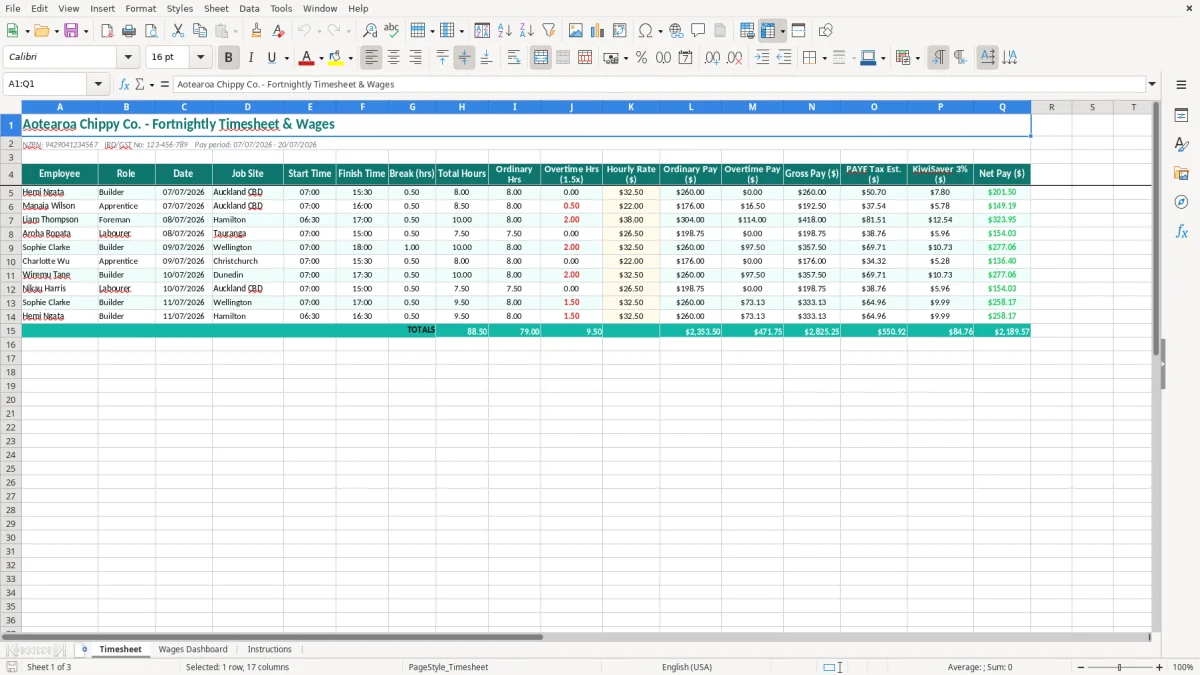
This chippy timesheet and wages Excel template records each employee's date, job site, start and finish times, breaks, ordinary hours, overtime, hourly rate, gross pay, estimated PAYE, KiwiSaver and net pay. It is set up for a fortnightly New Zealand pay period.
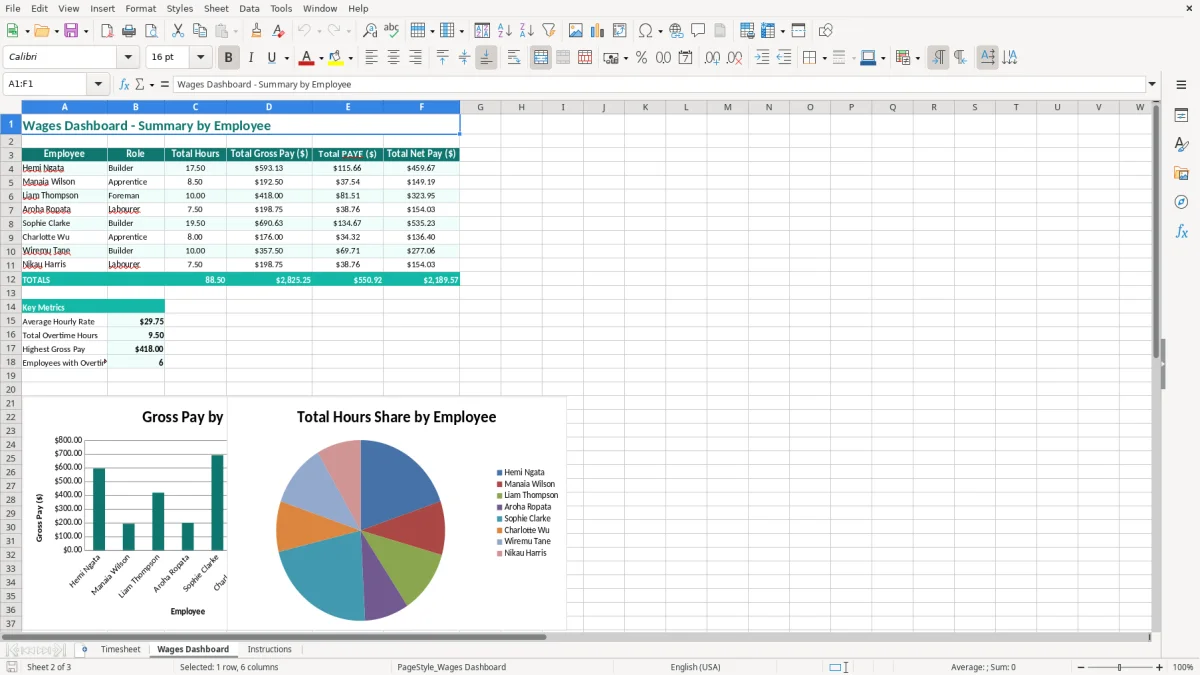
Enter the hours for your builders, apprentices and other site staff in the Timesheet sheet. The Wages Dashboard then gives you a quick view of labour costs, while Instructions explains the intended workflow and the fields to complete.
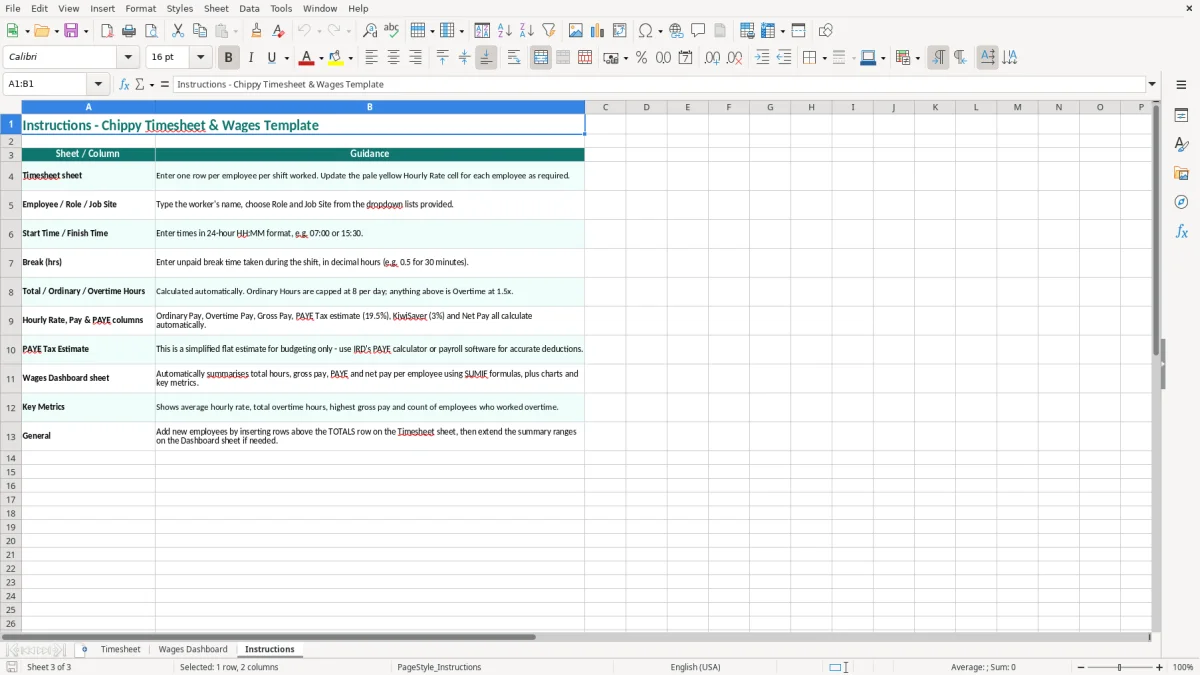
Image 1 shows the Timesheet layout, including the 17 columns from Employee through to Net Pay. Image 2 shows the wages summary, and image 3 contains the workbook instructions.
The key benefits of this Excel template
- Timesheet entries include the job site, making it easier to see where labour hours were spent.
- Separates ordinary hours from overtime hours paid at the 1.5x rate.
- Calculates ordinary pay, overtime pay and total gross pay from the entered hourly rate.
- Shows estimated PAYE, 3% KiwiSaver and net pay in the same row.
- Supports a clear fortnightly workflow for a small building or carpentry crew.
- Provides a wages dashboard so you can review labour costs without adding each worker manually.
- Includes your NZBN, IRD/GST number and pay-period dates at the top of the timesheet.
Step-by-step guide
- Open the Timesheet sheet and check the business details and pay period shown in the heading. Replace the example Aotearoa Chippy Co. information with your own details.
- Enter one row for each employee and work date. Complete the Employee, Role, Date and Job Site columns so the hours can be traced to a person and site.
- Record Start Time, Finish Time and Break (hrs). Use decimal hours for breaks, such as 0.5 for 30 minutes.
- Enter the employee's Hourly Rate ($). Check the rate against the employment agreement before relying on the calculated wages.
- Review Total Hours, Ordinary Hrs and Overtime Hrs (1.5x). Check any unusually long day before moving to payroll.
- Read the Ordinary Pay, Overtime Pay, Gross Pay, PAYE Tax Est., KiwiSaver 3% and Net Pay columns. Treat PAYE and net pay as estimates until checked against your payroll process.
- Open Wages Dashboard to review the fortnight's totals, then read Instructions before saving a copy for your payroll and job-costing records.
Included features
A 17-column Timesheet sheet covering Employee, Role, Date, Job Site, Start Time, Finish Time and Break (hrs).
Separate Total Hours, Ordinary Hrs and Overtime Hrs (1.5x) columns for checking daily attendance and overtime.
Hourly Rate ($), Ordinary Pay ($), Overtime Pay ($) and Gross Pay ($) fields for wage calculations.
PAYE Tax Est. ($), KiwiSaver 3% ($) and Net Pay ($) columns for an indicative take-home view.
A teal formatted header row with wrapped labels and alternating light row shading for easier reading.
A Wages Dashboard sheet for summarising the wage information entered in the timesheet.
An Instructions sheet explaining how to complete the workbook.
How a chippy uses the timesheet during a fortnight
The useful point of a chippy timesheet is that it joins attendance to the job site. A builder or foreman can enter a Monday spent on a renovation in Auckland CBD separately from a Tuesday on a new deck, rather than handing the office one total of 16 hours with no costing trail.
The office manager's weekly check
Imagine a Christchurch building firm with four staff. Hemi works 8 hours on Monday with a 30-minute break, so the row records 7.5 hours worked; Manaia may have 9.5 hours after her break, with the excess moving into the Overtime Hrs (1.5x) column. The hourly rate then drives ordinary and overtime pay.
The office manager can enter the rows as timesheets arrive, instead of reconstructing them on payday. Checking the job-site column against the project diary also exposes a missing day or an employee recorded on the wrong build before wages are processed.
When the dashboard earns its keep
At the end of the fortnight, the Wages Dashboard gives the owner a quicker view of labour totals than scanning every daily row. If 4 employees average 80 hours each at $32.50 per hour, ordinary wages alone are $10,400 before overtime, employer costs and leave accruals.
This is also useful at month-end when a small builder compares labour charged to a project with the invoice value. The workbook is a practical timesheet and wage estimate, not a replacement for a payroll system or a final job-costing ledger.
What New Zealand employers must check before payday
The workbook displays estimated PAYE, a 3% KiwiSaver amount and net pay, but those figures must be checked against current payroll rules and each employee's tax code. Payday filing requires employers to send employment information to Inland Revenue after each payday; the IR348 employer monthly schedule is no longer the whole process for modern payday filing.
KiwiSaver and wage calculations
The minimum compulsory employee and employer KiwiSaver contribution is 3% of gross salary or wages. On $1,200 gross pay, 3% is $36, but the employee deduction, employer contribution and ESCT treatment are separate payroll items. Do not use the Net Pay column as the amount to pay until the correct tax code, student loan status and contribution settings have been applied.
Employment agreements and the Holidays Act 2003 still govern ordinary hours, overtime arrangements, annual holidays and public holidays. The statutory annual holidays entitlement is 4 weeks after 12 months, while sick leave is generally 10 days after the relevant eligibility period. The spreadsheet does not replace leave calculations.
Minimum wage and records
Check the applicable New Zealand minimum wage before entering an hourly rate, particularly for apprentices and younger workers. Keep wage and time records for at least 7 years for Inland Revenue purposes, and retain enough detail to support the hours, rate and deductions reported.
A 31 March balance date is standard for many businesses, but payroll information also feeds ACC levy calculations and annual accounts. Use the workbook as an audit trail, then reconcile its fortnightly totals to your payroll filing and bank payment.
Where small building payrolls fall over
The expensive mistakes I see are usually small entry errors repeated across a crew. A finish time of 5:00 entered as 17:00, a break left blank, or 0.5 typed as 5 can turn a normal day into a large overtime or gross-pay error.
Hours that do not match the site
Suppose a worker is entered for 10 hours on a job but the site diary shows 8.5 hours after breaks. At $35 an hour, that is $52.50 of excess ordinary pay for one day; across 10 similar rows it becomes $525 before the knock-on effect on deductions and job margins.
Another common failure is using one row for a week and putting a note such as two days at Site A and three at Site B. That saves minutes at entry time but makes project costing and a later payroll query much harder. Separate daily rows are the better choice.
Estimated deductions mistaken for final payroll
The Timesheet includes PAYE Tax Est. and KiwiSaver 3%, which are helpful warning figures but not a full payroll calculation. A tax code change, student loan deduction, child support order, ESCT or a different KiwiSaver rate can make the actual net pay differ from the displayed estimate.
Paying the dashboard total without reconciling employee rows can also hide a duplicated shift. If 20 staff rows contain one duplicate 8-hour shift at $30, the gross wage overstatement is $240, and finding it after payday means a correction rather than a simple edit.
Overtime and breaks need a policy
Do not assume every hour over 8 is automatically overtime. Use the employment agreement and your agreed payroll rule. The sheet labels overtime at 1.5x, so confirm that this is the rate you have agreed before approving the fortnight.
That same approval step also belongs beside a wage tracking sheet for recording each row before the fortnight is signed off.
Turn the workbook into a Friday payroll routine
A spreadsheet only helps if the crew completes it while the work is fresh. Set a fixed cut-off, such as 10:00 am on the final Friday of the fortnight, and make the foreman responsible for checking every employee row before the office starts payroll.
Use a short review checklist
- Compare each Date and Job Site with the site diary or project-management record.
- Check Start Time, Finish Time and Break (hrs) for impossible values or unusually long shifts.
- Filter for overtime and confirm it was approved under the employment agreement.
- Compare the Wages Dashboard totals with the payroll batch before making the bank payment.
Save a dated copy after each pay run, such as Chippy wages 07-07-2026 to 20-07-2026. Keep the original template untouched so you can copy a clean workbook for the next period. If several people edit it, store one controlled copy rather than emailing different versions around the office.
Make entry consistent
Use decimal breaks consistently: 0.25 means 15 minutes and 0.5 means 30 minutes. Give supervisors a two-minute explanation of the columns, especially the difference between Total Hours and Overtime Hrs (1.5x).
Move to Xero, MYOB or dedicated payroll software when you need leave balances, payday filing, employee self-service, multiple pay rates or reliable audit permissions. For a crew of 4 with one fortnightly pay run, this workbook can be a sensible starting point; for 20 employees, manual checking becomes the bigger cost.
Once payroll grows beyond manual checking, the next step is often a deduction calculation sheet for working out net pay more reliably.
Common questions about this template
It records employee, role, date, job site, start and finish times and breaks. It also separates ordinary and overtime hours and shows ordinary pay, overtime pay, gross pay, estimated PAYE, 3% KiwiSaver and net pay.
Yes. It is set up for a New Zealand business with an NZBN, IRD/GST number and a fortnightly pay period. Replace the example business details and confirm the wage settings against your employment agreements.
No. The PAYE Tax Est. column is an indication only. Final PAYE can depend on the employee's tax code, student loan, secondary income and other payroll details, so reconcile the figures in your payroll system before payday.
The workbook has separate Ordinary Hrs and Overtime Hrs (1.5x) columns. It also shows Ordinary Pay and Overtime Pay separately, so check that the 1.5x treatment matches the employee's agreement before approving the wages.
Yes, the Job Site column lets you assign each daily entry to a project. The Wages Dashboard helps review totals, but you should reconcile the results with your accounting or project-costing records before relying on them for margins.
Keep employment and wage records for at least 7 years for Inland Revenue purposes. Save a dated copy for each pay period and protect employee information in line with the Privacy Act 2020.
Download
File format
Excel (.xlsx)
Compatible software
Excel, Google Sheets, LibreOffice
Price
Free
Category
Payroll & HR
7 templates available